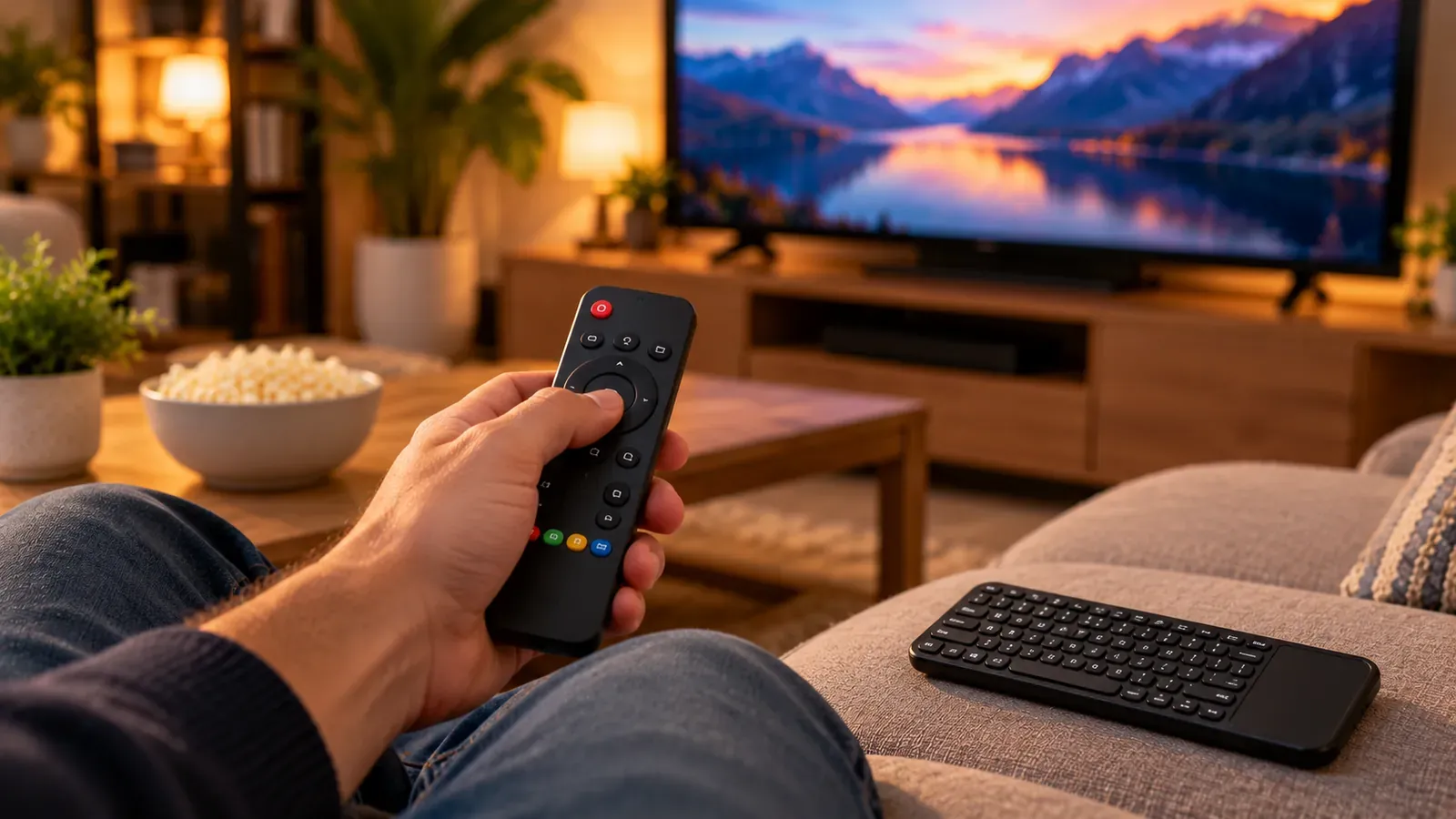
IPTV apps are controlled with your TV or streaming device's own remote, and most platforms also let you use a phone app or keyboard, which makes typing long playlist URLs and logins far easier. You don't need a special “IPTV remote” unless you use a dedicated set-top box that ships with one.
Getting the most from your remote
- Look in your player app's settings for button options. Many apps let you choose what the up/down, OK and back buttons do while watching (for example, channel change vs. opening the guide).
- Long-pressing OK or a menu button often opens extra options such as favorites or audio tracks.
- Add your most-watched channels to favorites so you can reach them in a few presses.
Using your phone as a remote
Most major streaming platforms offer an official remote app for phones; search your phone's app store for your TV or device brand's official app. A phone keyboard is the easiest way to enter a server URL, username and password.
Using a keyboard
Many TV boxes and computers accept USB or Bluetooth keyboards, and some keyboards include a touchpad. A keyboard helps for setup and searching; for everyday channel surfing, the remote is usually quicker.
When buttons don't respond
- Replace the remote's batteries and re-pair Bluetooth remotes in the device's settings.
- Check that the app isn't frozen: press Home, then reopen it.
- If you control a box through the TV remote (HDMI-CEC), check that CEC is enabled on both the TV and the device.
About remotes sold with “IPTV” branding
Generic replacement remotes for set-top boxes are fine, but be wary of devices marketed with “free channels” or preloaded services; see how to tell whether a service is licensed.