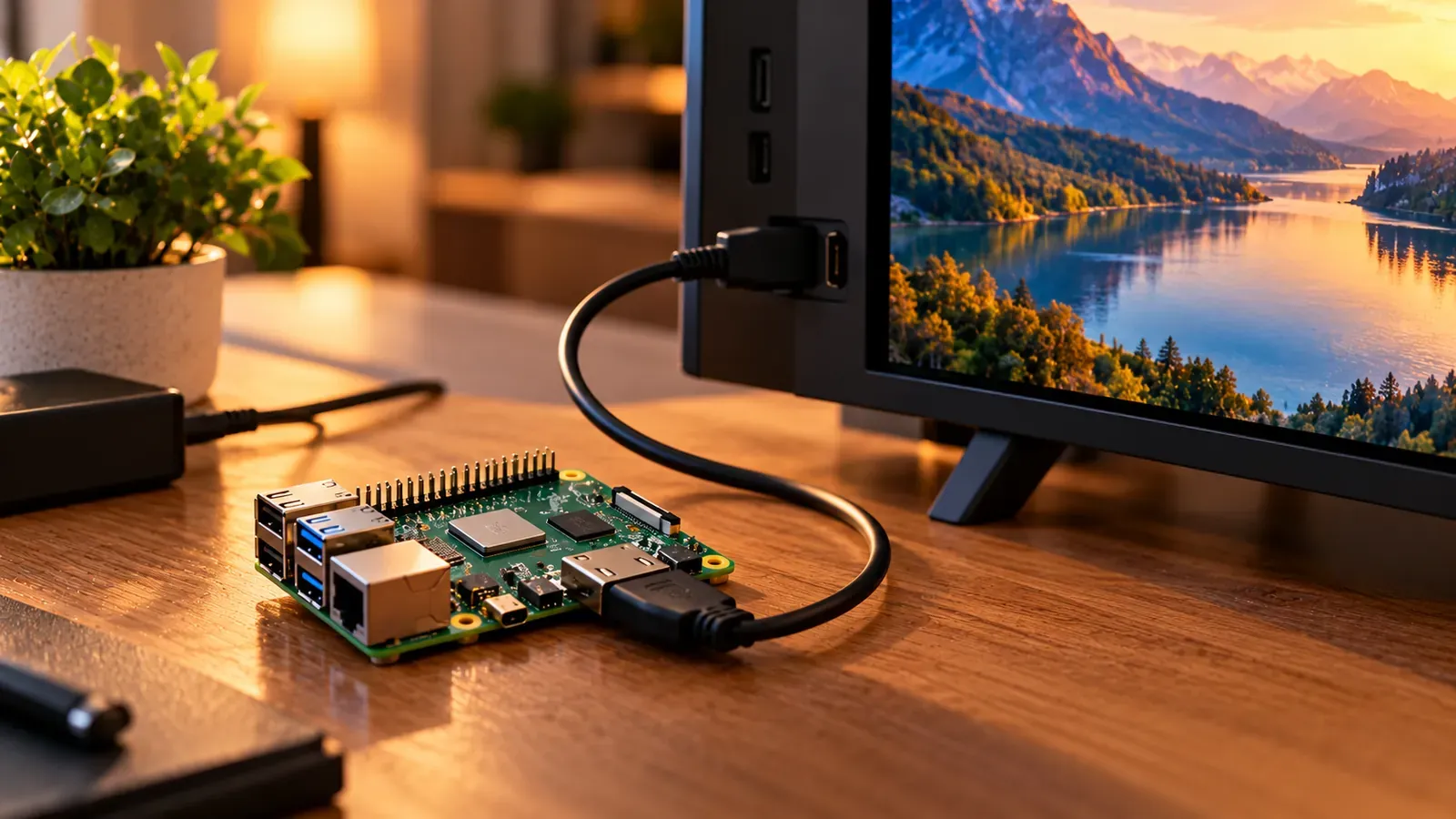
The simplest way to watch IPTV on a Raspberry Pi is to install LibreELEC, a minimal operating system that boots straight into Kodi, and then add your playlist with Kodi's official PVR IPTV Simple Client add-on. The result is a small, quiet TV box with a full channel list and program guide.
Which Raspberry Pi models work?
LibreELEC 12.2, the current stable release at the time of writing, offers builds for the Raspberry Pi 5, Pi 4, Pi 400, Compute Module 4, Pi 3 and Pi 2. Newer models handle demanding streams and menus noticeably better than older ones.
What you need
- A supported Raspberry Pi with a suitable power supply and case.
- A microSD card and a computer to prepare it.
- An HDMI cable to your TV, plus Ethernet (recommended) or Wi-Fi.
- Your provider's M3U playlist URL and XMLTV guide URL.
Step 1: Install LibreELEC
- Download the build for your Pi model from LibreELEC's Raspberry Pi download page.
- Write it to the microSD card following LibreELEC's instructions.
- Insert the card, connect the TV and network, and power on. Follow the on-screen setup to connect to your network.
Step 2: Add the IPTV add-on in Kodi
- In Kodi, go to Settings → Add-ons → Install from repository → PVR clients → PVR IPTV Simple Client, and install it.
- Open the add-on's Configure screen, set the playlist location to a remote path, and paste your M3U URL.
- Add your XMLTV guide URL on the EPG settings tab.
- Restart Kodi; your channels appear under TV.
Tips
- Use Ethernet for steady playback.
- Many TVs support HDMI-CEC, which can let you control Kodi with your TV remote.
- Stick to Kodi's official repository. Third-party “builds” often bundle unlicensed streams and outdated software.